6 May 2013

Adding Voice Comments to a Google Doc

Author: lmoore4 | Filed under: iTouch/iPad

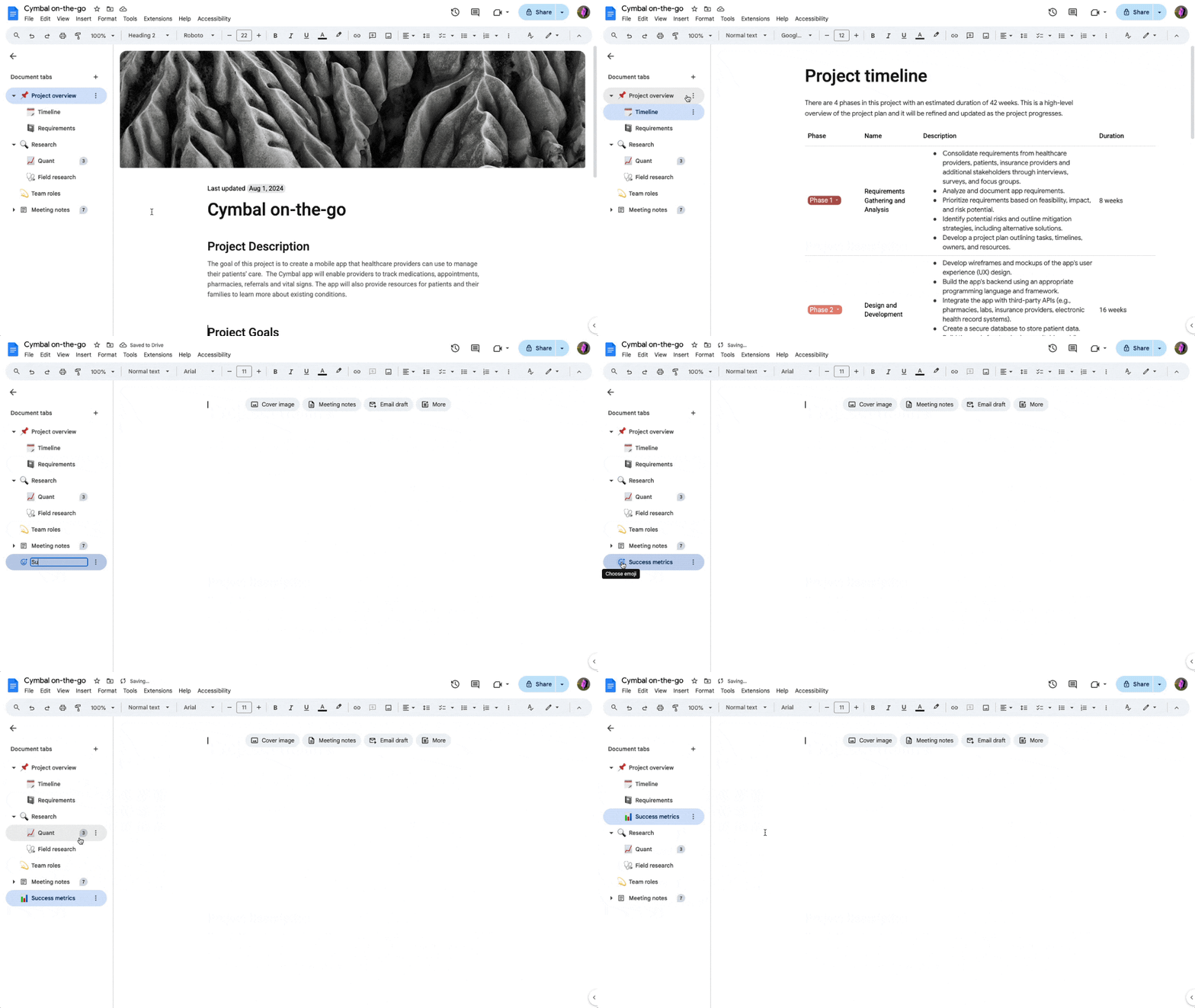
This gem of a find comes to you via Susan Reeves, Instructional Specialist, Digital Age Learning for the Education Service Center, Region 20 in San Antonio, Texas. Google Docs is one way for you and your students to easily collaborate in real time. By adding this extension, you now have the ability to leave voice comments, which can be helpful for struggling readers. You can also use it as a tool to improve fluency by having students read a passage that you have uploaded. This is by far one of the easiest tools to add to your arsenal.

Print Friendly
27 Apr 2013

My Top 12 Tech Tools

Author: lmoore4 | Filed under: iTouch/iPad

Print Friendly
24 Apr 2013

Password Management Systems for Teachers

Author: lmoore4 | Filed under: Tech Tips, Web 2.0

With more and more online tools requiring specific and unique passwords, I am finding it very difficult to remember my username and password combinations (and, of course, has nothing to do with my age). I have found several free web-based services and apps that will securely store this information and it’s easily accessible. Below are some of my favorite options:

  • PassPack- Web based version, can be viewed on any computer or iDevice. There is a PassPack Offline and PassPack Desktop that can be downloaded as well. It will choose a password for you and has a notes section to record past passwords. It does require a username, password and packing key phrase (the phrase cannot be recovered if forgotten)
  • Google Docs- Can be accessed on any device or computer. Requires Internet connection, unless you have it synced in Google Drive on your computer or iDevice.
  • Password protected Excel-can be saved in Dropbox. If you add to favorites, it does not require internet connection

*Disclaimer- With the exception of Google Docs, these services are entities outside of NEISD. We cannot provide troubleshooting support. Use at your own risk.

Print Friendly
21 Apr 2013

Productivity Tools and Podcasts: Take 2

Author: lmoore4 | Filed under: iTouch/iPad

Below you will find a re-recording of my recent Productivity Tools and Podcasts webinar with Dave Mullinix. Needless to say, we happened upon a few technical difficulties (hence the name: Take 2). The 3 apps featured are Dropbox, iBooks, and Podcasts. All can be used with students or as administrative tools to make life a little easier. Enjoy!

Productivity Tools and Podcasts Webinar from Laura Moore on Vimeo.

Print Friendly

One of my favorite resources for integration ideas and instructional tutorials is www.teq.com. They recently shared a recording from the April 15 webinar showcasing 5 apps for creating and sharing content. I’ve embedded the recording below. This is a wonderful example of using the iPad to promote higher order thinking skills in iLessons. All of the apps featured in this webinar are free and very easy to use. As with most apps and web tools, an account is required. I would suggest creating a generic classroom account with an easy to remember password. 

Print Friendly
12 Apr 2013

The Richter Report

Author: lmoore4 | Filed under: iTouch/iPad

Kelly Richter at Northwood Elementary in San Antonio, Texas uses her blog to showcase student learning, share technology integration ideas with other teachers, and to communicate with parents on a regular basis. Her class recently visited Honey Creek in Guadalupe State Park where students were able to see various lifeforms found in healthy water and even created their own fossil rubbings. This was a great way to share the field trip experience with working parents who were unable to attend. She also models math problem solving strategies for students who may need additional practice at home. Check out Miss Richter’s blog at http://blogs.neisd.net/kricht/. Be sure to leave a comment and encourage the continuation of their blogging journey!

Print Friendly
6 Apr 2013

Standard V for NEISD

Author: lmoore4 | Filed under: iTouch/iPad
What is Standard V?

All Teachers know how to plan, organize, deliver, and evaluate instruction for all students that incorporates the effective use of current technology for teaching and integrating the Technology Application TEKS into the curriculum.

Where Have We Been?


An Introduction to Technology Integration


Implementation Timeline
  • Year One (2012-2013): Provide professional development for all campus administrators. Administrators are required to attend three 30 minute Standard V professional development sessions presented during Principals Meetings scheduled between November 2012 and May 2013. Professional development will be geared toward identifying and recognizing good technology practices based on the Texas STaR Chart and ISTE national standards.
  • Year Two (2013-2014):  All teachers will be required to attend one session of Standard V professional development and include one student technology project in their teacher self-report to be shared and discussed during the summative of their PDAS. The quality of the product and administrator walk throughs will be used to accurately access “Domain II-9. Use of Technology” of the teacher summative instrument.
  • Year Three (2014-2015):  Same as previous year, but the number of student technology projects increases to (2) two.

Patterns of Classroom Use (Texas STaR Chart)


Early Tech (I use District required administrative tools.
I sometimes display electronic agendas and/or lecture slideshows. My students practice on the computer
)

I occasionally use technology to supplement instruction, streamline management functions, and present teacher-centered lectures. My students use software for skill reinforcement.

Developing Tech (I teach students how to use software applications. I design and facilitate my student’s technology products.

I use technology to direct instruction; improve productivity, model technology skills, and direct students in the use of applications for technology integration.

Advanced Tech (My students work in cooperative groups.
My students collect and analyze data gathered through advanced technology such as spreadsheets, databases, and data collection equipment. My students occasionally have choice in the form of their final product.) 

I use technology in teacher-led as well as some student-led learning experiences to develop higher order thinking skills and provide opportunities for collaboration with content experts, peers, parents, and community. My students evaluate information; analyze data and content to solve problems.

Target Tech (My students design and structure their own learning. Students communicate with practicing experts to formulate solutions. Technology is available and used seamlessly.)

My classroom is a student-led learning environment where technology is seamlessly integrated to solve real world problems in collaboration with business, industry, and higher education. Learning is transformed as my students propose, assess, and implement solutions to problems.


Technology Application Standards for Grades K-12


Online Tools and NEISD Applications Available to Assist in Meeting Standards

Technology Services Can:
  • Provide Professional development to be geared toward identifying and recognizing good technology practices based on the Texas STaR Chart and ISTE national standards.
  • Campus ITS will continue to provide model and co teaching experiences.
  • Campus ITS will continue to plan with grade levels and assist with the creation of technology integrated lessons that support classroom instruction.
  • Please note that you may not submit a student technology project for your PDAS portfolio that your campus ITS has modeled. 
Other Tools and Resources:
Suggested Online Tools for Portfolio Submission:

Print Friendly
9 Jan 2013

TagMyDoc

Author: lmoore4 | Filed under: iTouch/iPad, Web 2.0

What is it? TagMyDoc is a web application that revolutionizes the way we share documents. At its most basic form, we apply a QR Code on a document so when readers scan the tag, they can get the virtual copy of said document. Also, TagMyDoc offers numerous other modern ways to share documents such as sharing to social networks & email.

Why is it green? When someone wants a copy of your document, and chooses to scan it in order to retrieve its virtual copy, it relieves you from the burden of having to print it physically. You’ll save precious energy, time and paper.

Can I modify a tagged document without changing the tag?  Absolutely! It is very easy to tag a new version of a document without changing the QR code. Once you browse to your document in your account, you will see the “Versions” tab that you need to select. After, a big blue “Tag a New Version” button will be shown. That’s where you want to select the new version of your document.

Here is an example using a handout from one of my classes: Google Earth Placemarks:

Print Friendly
28 Dec 2012

Voki’s Getting SMARTer

Author: lmoore4 | Filed under: Everything Smart, Tech Tips, Web 2.0

Notebook 11 makes it easy to include a Voki avatar in your SMART Notebook lessons. Below you will find a video showing how to download the widget and embed the HTML code right into the software. This will make your presentations much more engaging for students and allows them yet another way to demonstrate understanding of a concept. Visit the SMART Exchange to find this Voki widget and more. Click here for a PDF tutorial on how create your own Voki: Voki Tutorial


You will need to have a Voki account in order to use this widget. You can also create free accounts for your students using their Google Docs credentials. See your campus ITS for more information. Here are a few examples of how you can use Voki avatars within the Notebook Software:

Print Friendly

As part of my “Anchor Activities” series, here are a few digital vocabulary ideas that students can complete during SSR time or in Math/Literacy stations. Have students generate a list of vocabulary words they are unfamiliar with (or assign them specific words from your Math or Science word walls) and allow them to choose from the following activities:

I’ve made some examples of each using the word “condensation”

Digital vocabulary from Laura Moore

There are a variety of online vocabulary resources for support in defining and explaining concepts:

Print Friendly